
 how-to
AI Sales Tools Integration with CRM: 2026 How-To Guide
Table of Contents
- Why AI Sales Tools Integration with CRM Matters for Growing Firms
- Quick Comparison: Top AI Sales Tools and Their CRM Integrations
- Step-by-Step: How to Integrate AI Sales Tools with Your CRM
- Step 1: Audit Your Current CRM Data and Workflows
- Step 2: Choose Your Integration Method (Native vs. API vs. Middleware)
- Step 3: Map Fields and Set Up Data Synchronization
- Step 4: Configure Permissions and Access Controls
- Step 5: Test in a Sandbox Before You Go Live
- Step 6: Cut Over and Plan for Rollback
- AI CRM Integration: Architecture, Security, and Data Governance
- AI Sales Tools for Small Businesses: What to Look For
- AI Lead Qualification: Automating Your Pipeline Without Losing the Human Touch
- AI Sales Call Summaries: Turning Conversations into CRM Records
- Measuring ROI and Troubleshooting Common Integration Issues
- Frequently Asked Questions
Last Updated: October 5, 2026
Why AI Sales Tools Integration with CRM Matters for Growing Firms
Connecting AI sales tools to your CRM is the highest-use move a growing B2B firm can make in 2026. When it works, your pipeline updates itself, leads get scored on arrival, and reps sell instead of typing. Firms that wire AI into their CRM early can scale revenue without adding headcount.
The Cost of Manual Lead Management
Manual lead management quietly drains capacity. Reps copy contact details between tools, forget follow-ups, and let warm leads go cold because nobody logged the call. Treating the CRM as an archive rather than an operating system is a common mistake. Without AI sales tools integration with CRM, your best data sits in inboxes and notebooks, invisible to forecasting.
Quick Comparison: Top AI Sales Tools and Their CRM Integrations
| Tool | CRM Connection | Starting Price | Best For |
|---|---|---|---|
| Megan Driscoll Consulting | Custom CRM build + AI layer | Quote-based | Firms wanting a tailored system |
| Salesforce Einstein | Native to Salesforce | Not published | Enterprise CRM intelligence |
| HubSpot Breeze AI | Native to HubSpot | $90/user/month (Breeze AI) | Teams already on HubSpot |
| Leadbeam | Salesforce, HubSpot, Pipedrive, Zoho, Dynamics 365 | $49/user/month, billed annually | Field sales teams |
| Revenue Grid | Native CRM integration | Not published | Native-integration buyers |
| Apollo | Not specified | Free tier | Teams testing AI platforms |
Pricing above reflects vendor-published figures where available. For our own engagements, pricing depends on scope, so we quote after a strategic audit.
Step-by-Step: How to Integrate AI Sales Tools with Your CRM
Treat integration as a phased project, not a one-click install. This sequence works whether you run Salesforce, HubSpot, Microsoft Dynamics 365, Zoho, or a custom build, and you can run it in a sandbox before anything touches live records.
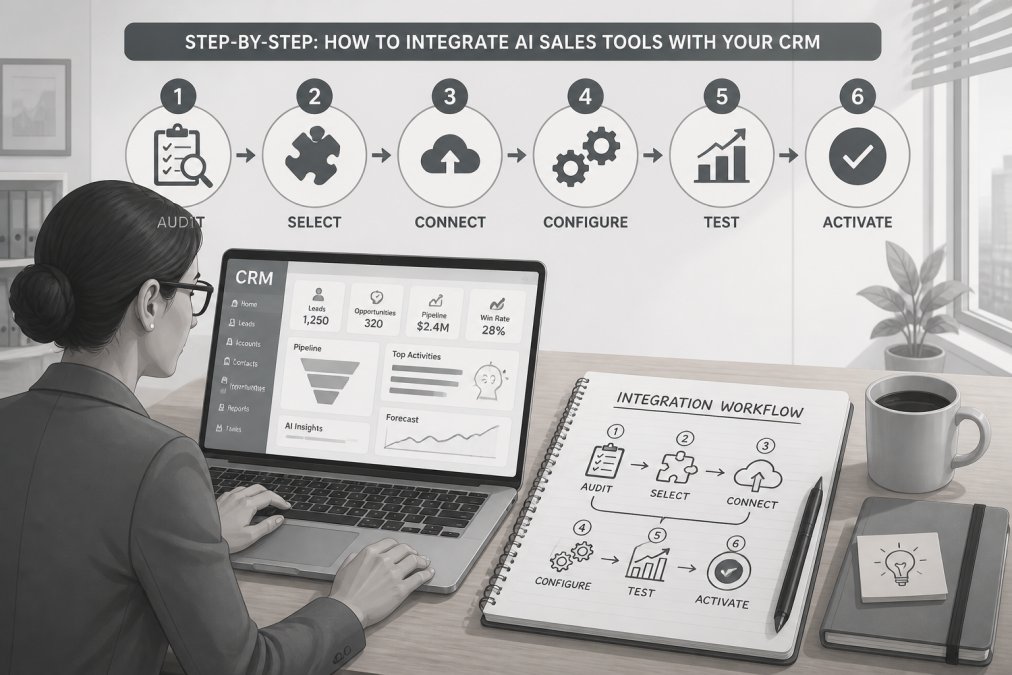
Step 1: Audit Your Current CRM Data and Workflows
Document what you actually have. List every field on your contact, account, lead, and opportunity records, note which are populated, and trace where each lead enters and exits.
Three questions drive the audit:
- Which fields are required for the AI tool to function (for example, email, company domain, lead source, or owner)?
- Which fields are dirty, duplicated, or free-text where they should be picklists?
- Which workflows fire on record creation or update, and would an AI-written update trigger them unintentionally?
Most CRMs are messier than owners expect, and you cannot map what you have not measured. Export the field list and mark each field keep, clean, or retire before you connect anything.
Step 2: Choose Your Integration Method (Native vs. API vs. Middleware)
Native integration is simplest: the AI tool ships with a CRM connector, so setup is mostly configuration. API integration gives full control and suits custom builds, but needs engineering time and maintenance when vendors change endpoints. Middleware handles field mapping, transformation, and retries between systems, which helps with several third-party tools.
Choose native when a supported connector exists, API when you need control over payloads and timing, and middleware when stitching together a CRM stack or when you need transformation logic native connectors cannot express.
Step 3: Map Fields and Set Up Data Synchronization
Field mapping decides whether your integration succeeds. Match each AI field to a CRM field, define sync direction, and set workflow triggers for record updates.
Build the mapping in a spreadsheet with four columns: AI field, CRM field, direction, and transformation rule. Common transformations include normalizing phone numbers, lowercasing emails before matching, and mapping AI scores onto CRM picklist values.
Step 4: Configure Permissions and Access Controls
Before turning on the sync, decide what the AI tool may read and write. Apply least-privilege permissions so the integration user touches only the objects and fields it needs.
Separate read permissions from write permissions. An enrichment tool may read contacts and accounts but write only to enrichment fields; an outreach tool may read leads and write activities but should not delete or export the full database.
Step 5: Test in a Sandbox Before You Go Live
Never test against production records. Use a sandbox or a small, revertible pilot segment, and run three test passes:
- Create test: push a new lead through the AI tool and confirm it lands in the CRM with the correct field values and owner.
- Update test: change a field in the AI tool and confirm the CRM reflects the change without overwriting fields it should not touch.
- Failure test: disconnect the integration or send a malformed record and confirm your alerts fire and the sync recovers without duplicating records.
Document the expected result for each test so you can rerun the same checks after any vendor update.
Step 6: Cut Over and Plan for Rollback
Cut over in stages: start with one team or lead source, monitor for a week, then expand. Keep a rollback plan, know how to disable the integration, identify AI-written records, and revert them.
After cutover, schedule a 30-day review to confirm the mapping still matches how your team works. A mapping correct at launch can drift within a quarter.
AI CRM Integration: Architecture, Security, and Data Governance
AI CRM integration connects AI services to your CRM so data flows automatically between them. It covers architecture, permissions, and data governance. Before connecting anything, decide where customer data lives, who can export it, and how you handle deletion requests. Apply least-privilege permissions and log every automated update. Teams that skip governance spend months cleaning up duplicates and mistrust the system.
AI Sales Tools for Small Businesses: What to Look For
Small firms should prioritize native CRM connectors, transparent pricing, and human review checkpoints. AI sales tools for small businesses fail when they demand heavy engineering or lock data behind opaque pricing. Look for a free tier or trial, check supported CRMs, and confirm you can export your data. A tool that integrates cleanly with your existing CRM beats a more capable one that requires a migration.
AI Lead Qualification: Automating Your Pipeline Without Losing the Human Touch
AI lead qualification scores and routes incoming leads automatically, so your team spends time on sales-qualified leads instead of unqualified inquiries. Set qualification criteria in the CRM, let the AI score each lead, and route high scorers to a rep immediately. Keep a human review step for edge cases and uncertain leads.
AI Sales Call Summaries: Turning Conversations into CRM Records
AI sales call summaries transcribe and condense conversations into structured CRM records, so reps stop writing notes after every call. The summary lands on the contact record with next steps, objections, and follow-up dates, and triggers the next task automatically. Review the first few summaries to confirm the AI captures your qualification criteria, then let it run.
Measuring ROI and Troubleshooting Common Integration Issues
Measure integration ROI against time saved and pipeline velocity, not tool features. Most teams start measuring after launch, when there is no baseline. Capturing a baseline before cutover, then reviewing at 30, 60, and 90 days, can provide clearer insights.
Build a Baseline Before You Launch
Pull four numbers from your CRM before the integration goes live:
- Average admin minutes per rep per day spent on data entry and follow-up logging
- Lead-to-opportunity conversion rate for the trailing 90 days
- Average time from lead creation to first rep touch
Write these down. Without them, any ROI claim after launch is a guess.
What to Track in Your First 90 Days
- Hours of admin work removed per rep per week
- Percentage of leads scored and routed automatically
- Follow-up completion rate on automated tasks
- Forecast accuracy against closed revenue
Adoption is the metric teams skip and later regret. If reps ignore AI-written summaries or routed leads, the integration is technically working and operationally failing. Track adoption weekly for the first month.
A Simple ROI Calculation
Convert time saved into dollars using fully loaded hourly cost, not salary alone. If the integration removes three hours of admin per rep per week across ten reps, that is thirty hours returned to selling weekly. Multiply by the fully loaded hourly cost, then compare against the tool plus implementation cost. Count only time you can verify from CRM activity logs, not rep estimates.
Common Data Quality and Sync Problems
Duplicate records top the list, usually from two systems writing the same field or matching on a non-unique field. Missing mappings break scoring, sync delays push reps back to manual entry, API rate limits silently throttle high-volume syncs, and inconsistent picklist values cause validation failures.
Diagnostic Steps for Each Problem
- Duplicates: identify the matching rule the integration uses. If it matches on email, confirm email is normalized and unique. If it matches on company name, expect duplicates from name variations and add a domain-based match instead.
- Missing mappings: compare the integration's field list against your CRM field list monthly. New fields added by either vendor are the most common source of gaps.
- Sync delays: check the integration log for retry counts and error codes. A rising retry count usually means a rate limit or an authentication token that needs refreshing.
- Validation failures: export the failed records and compare the picklist values in each system. Map AI output values onto your CRM's allowed values rather than writing free text.
Fix duplicates with a deduplication rule, audit mappings monthly, and set alerts for sync failures. A Salesforce data quality guidance and HubSpot CRM integration documentation both stress regular audits as the foundation. For privacy obligations, follow FTC guidance on protecting personal information.
Human Review and AI Failure Handling
Automation needs a human backstop. Set confidence thresholds so the AI writes to the CRM only when confident, and route low-confidence records to a review queue. Build an approval workflow for AI-generated outreach, keep an audit trail of every AI-written update, and define an escalation path for uncertain or disputed records.
Frequently Asked Questions
How do you integrate AI sales tools with a CRM?
Start by auditing your CRM data and identifying the workflows you want to automate. Choose an AI tool that offers native integration or API access to your CRM. Map your fields carefully, set up data synchronization rules, and test with a small batch of records before going live. Most platforms provide guided setup wizards, but complex field mappings may require developer support or a consulting partner.
Which AI sales tools integrate with CRM platforms?
Several tools offer CRM integration. Leadbeam integrates with Salesforce, HubSpot, Pipedrive, Zoho, and Dynamics 365. Revenue Grid is described as having native CRM integration. HubSpot Breeze AI operates within the HubSpot platform. Apollo is also named in current comparisons, though you should verify specific CRM compatibility with each vendor before committing.
What should you check before connecting an AI tool to your CRM?
Verify the integration method (native, API, or middleware), data field mapping options, sync frequency, and security certifications. Check whether the tool supports your specific CRM version and whether it can handle your data volume. Review the vendor's data privacy policy and confirm how they handle permissions. Finally, run a pilot with a small dataset to catch sync errors before rolling out to your full pipeline.
How do you measure the results of AI and CRM integration?
Track lead response time, qualification accuracy, follow-up completion rate, and pipeline velocity before and after integration. Set a baseline in your first week, then review metrics at 30, 60, and 90 days. Look for reductions in manual data entry hours and increases in sales-qualified leads. Forecast accuracy and conversion rates are also strong indicators of whether the integration is delivering measurable ROI.